A customer calls from the parking lot of the building next door. Another one circles the back of the plaza, can't find your entrance, and shows up late and annoyed. Some never show up at all. Your business is on Google Maps, so the listing exists, but the Google Maps pin is in the wrong location, and every trip that starts from it can end in the wrong place.
You can usually move that pin yourself in a few minutes. The part that trips people up is that the pin is only one of the things Google uses to send someone to your door, and a fix to the wrong one won't hold.
Once you know which piece is off, you can correct it, give Google time to process it, and test it from a customer's phone.
Key Takeaways
As the verified owner, open Edit profile, then Location, the pencil beside Business location, then Adjust. Move the map until the pin sits on your business, then select Done and Save.
If the pin is correct but Directions still send people to the wrong entrance or road, report the route or map data in Google Maps. Moving the pin again won't fix it.
Google says profile changes usually show in about 10 minutes and can take up to 30 days. Retest with Directions from a phone before you call it fixed.
Put Your Pin Back on the Real Entrance in a Few Minutes
If you are the verified owner and your business shows up at the wrong point on the map, the fix starts in your Google Business Profile. Google's steps in Manage your business address are short:
- Open your Business Profile: Sign in with the Google account that manages the business.
- Choose Edit profile, then Location: This opens your address and map settings.
- Select the pencil beside Business location: This lets you change the address and the pin.
- Select Adjust: Google's instruction is to "Move the map so the pin points to your business location."
- Select Done, then Save: Your change goes to Google for processing.
On a phone, open the Google Maps app, tap Business at the bottom right, then Edit profile and Location, and use the same pencil beside Business location. Put the pin where a customer should arrive, on the building and the side of it where your door actually is. If your shop faces the side street, the pin belongs on that side, not in the middle of the roof or out by the main road.
Google says changes to your profile "usually take about 10 minutes to show up," and that in some cases it can take up to 30 days. Treat that as a range for when a change appears, not a promise that Google accepts every move. If your edit is still waiting, you aren't doing anything wrong by leaving it alone. Submitting the same change again and again won't speed it up.
Find Out Which Part of the Map Is Sending Customers Wrong
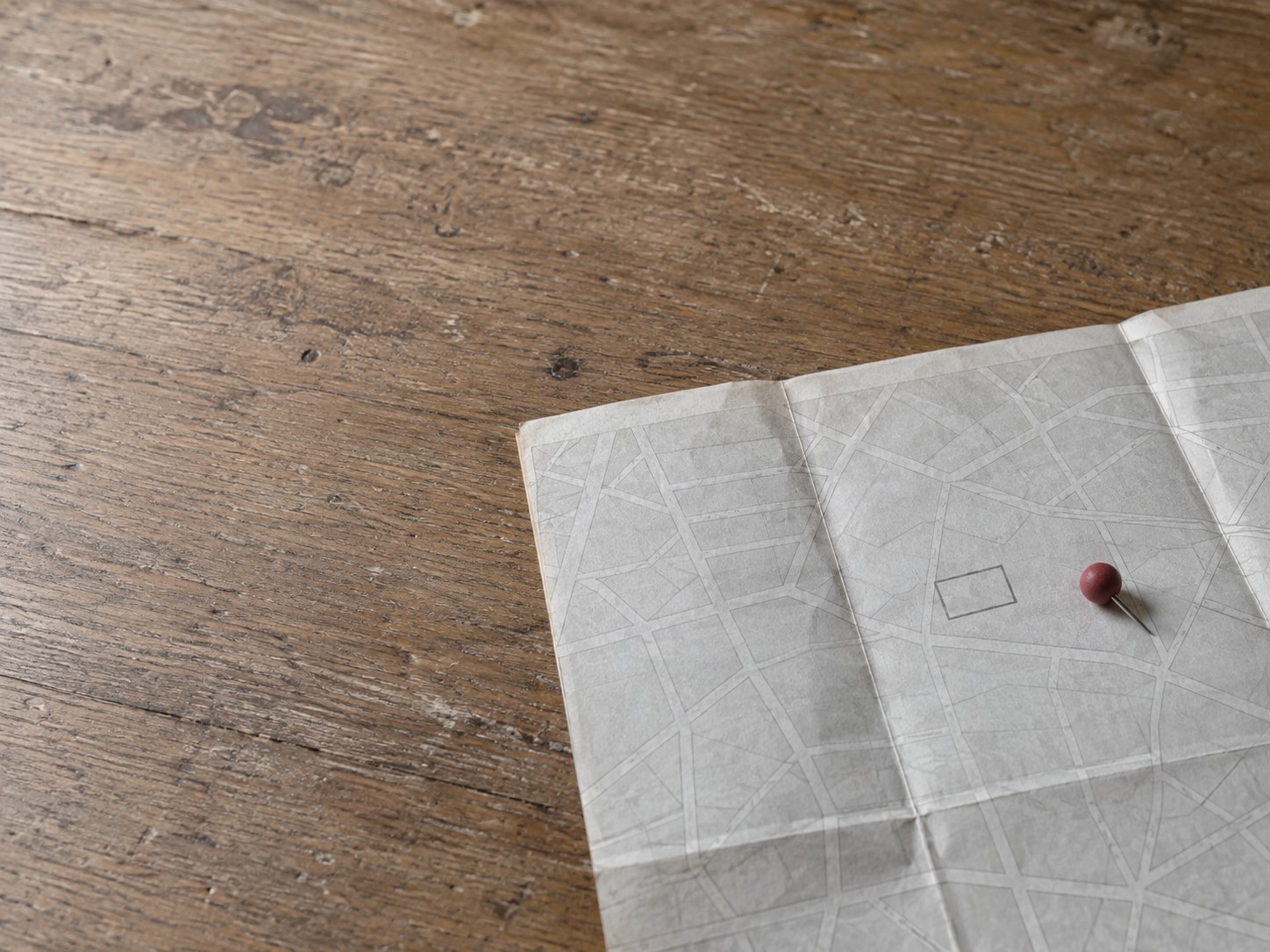
A wrong arrival can come from three different places, and each one has its own fix. There is your business's own pin, which you control in your profile. There is Google's underlying map data: the address point, the road, the building outline. And there is the route that Directions builds between the two. Moving your profile pin fixes only the first one, so a short check first saves you from fixing the wrong thing.
Google Maps Help keeps these apart. Its page on reporting data or content errors covers fixing addresses, pin locations and roads, while wrong turns go through a separate wrong directions report. Your profile editor handles your business's own point.
A fifteen-minute check from your own phone
- 1
Minutes 1 to 3, route
Open Google Maps and get Directions to your business from a realistic nearby starting point, such as the main road your customers use.
- 2
Minutes 4 to 5, endpoint
Note where the route ends and how it approaches. Does it reach your customer entrance, the loading dock, the back lot or the next building?
- 3
Minutes 6 to 8, profile pin
Open your verified profile, go to Location, and use Adjust to see where your pin is set. Don't save unless you mean to change it.
- 4
Minutes 9 to 10, address
Compare the full street address and suite number in your profile with your signage and postal records, and with what the public listing shows.
- 5
Minutes 11 to 12, Street View
Where it's available, look at the storefront in Street View and check that the pin and the route meet the door you expect.
- 6
Minutes 13 to 15, duplicates and pending edits
Search Maps for your business name, your phone number and any old address, and check your profile for an edit that is still pending.
Write down what you find, with screenshots and the date. That record shows you which fix to make, and it gives you something to compare against after Google processes the change.
| What you see | The likely layer | Where to fix it |
|---|---|---|
| Your pin sits on the wrong building or a field | Your business's own pin | Business Profile: Edit profile, Location, Adjust |
| Google can't find your address or it has no street number | Address data | Business Profile: correct the address, then set the pin with Adjust |
| Pin is right, but Directions end at the back or the wrong entrance | The route | Google Maps: wrong directions feedback on that route |
| A road is missing or wrong near you | Road data | Google Maps: add or fix a road |
| Two listings for your business, or one at an old address | A duplicate place | Update your existing profile; resolve the duplicate |
| You serve customers at their location, not yours | Service-area setup | Hide the address and set service areas |
Match the Fix to the Cause So It Holds
Once you know which layer is wrong, the fix is usually small. The paths below are in the order worth checking. Work through them until one matches what your check showed.
The profile pin itself is off
This is the simplest case: your address is right, but the pin sits on the wrong spot. Use Adjust, move the pin to your real location, save, and test after Google processes it. It's a small task you can do yourself.
Google can't find your address
A new building, an unusual address or one with no street number can confuse Google's system. Google's address page says that when the system can't find an address, you'll be asked to re-enter the parts highlighted in red, and if it still can't, you can "select Adjust to set a pin on the map to show where your business is." Correct the address fields first, then set the pin. The change itself is quick, but this is one of the cases where review can run toward that 30-day limit.
You share a plaza, a mall or a building
When several businesses share one address, the suite number and the pin carry more weight. Make the address and suite exact, set the pin on your unit's entrance, and check the result in Street View. If your business sits inside another business, like a store inside a shopping mall, Google says you can request to have that shown in your profile. That tells customers to look for the larger business first.
An old or duplicate listing is catching customers
If you moved, or someone else created a listing for you, a second place on the map can keep sending people to the wrong spot. Search Maps for your name, your phone number and your old address. Google's page on duplicate profiles and ownership covers how to request ownership of a listing or report it. After a move, update the profile you already have. Don't create a new listing to fix a location; Google allows one profile per business.
You serve customers at their place, not yours
If you drive to customers or make deliveries and nobody comes to your address, you are a service-area business in Google's terms. Google's service-area guidance says to hide an address where you don't serve customers and to list the areas you serve instead, up to 20 cities, postal codes or other areas. Google says a service area can't be set as a radius, and that approved service-area edits may take up to 48 hours to appear. In this case the fix is not a better pin on your home. It's no public pin at all, plus accurate service areas. If you aren't sure which type you are, Google's guidelines for representing your business spell out the rules.
Get Directions Fixed When Your Pin Is Already Right
Sometimes the pin is perfect and customers still end up at the back of the building. That's a route problem, and your profile can't change it. Google's map data, the roads, the address point and the turns that Directions picks, is fixed through Google Maps.
For a bad route, Google's wrong directions help tells you to get the directions that go wrong, select the route, choose Details, then Send Product Feedback, and flag the step that's wrong. For a wrong address point or pin on the map itself, use Suggest an edit on the place in Google Maps and choose Wrong pin location or address. For a missing or wrong road, the same Maps reporting page has an add-or-fix-road option.
Be exact when you report. Note the starting point you used, the destination, the step that goes wrong and the entrance people should reach. A report that says "the route from the main road ends at the loading dock on the north side; the customer entrance is on the south side" gives Google something to check. Plan to retest Maps data, road and route reports yourself rather than wait for a notice.
Keep the Pin From Drifting Back
It's maddening to fix the pin and then see it in the wrong spot a few weeks later. There are reasons this can happen, and none of them mean you did something wrong. Google says in how it updates Business Profiles that it uses other sources of information, and that it may apply edits suggested by users without reviewing them first. So, a wrong public result after an accepted edit isn't proof that anyone on your team changed it.
The other common reason is editing the wrong layer. If the route is the real problem, you can move the profile pin as many times as you like and customers will still arrive at the back. Go back to your check and see which layer changed.
To keep it where it belongs:
- Save your records: Screenshots of the pin, the Maps link, the date and the exact route that went wrong.
- Retest after changes: Run Directions from the same starting point once Google shows your edit.
- Watch for suggested edits: Check your profile for updates Google applied that you didn't make.
- Keep details consistent: The same address and suite on your profile, your signs and your website.
The goal isn't a pin that looks right on your screen. It's a customer who uses the same public route they always would and reaches your door. If you keep other details in your profile current, such as holiday hours and temporary closures, the same habit of checking the public listing covers the pin too.
Know How Long to Wait and What to Expect
Google gives a clear range for profile changes: usually about 10 minutes, and in some cases up to 30 days. Service-area edits may take up to 48 hours once approved. Maps reports on roads, address points and routes come with no set turnaround and no promise that any report will be accepted, so check back on them yourself.

You may also wonder whether a wrong pin hurts where you show up in local search. Google's tips to improve your local ranking say that complete, accurate information makes your profile more likely to show up in relevant local results, and that local results mainly weigh relevance, distance and prominence. Fix the pin because customers need to find the door. That reason is enough.
When You Can Do It Yourself, and When Help Pays Off
You can usually handle this on your own. A verified owner can make the pin adjustment in a few clicks and file a Maps report without paying for software. Google doesn't charge for either path and doesn't require a third-party listing tool. If your check pointed to one clear cause and the fix held on the retest, you're done.
Help starts to pay off when the simple fix doesn't hold. That might be a duplicate you can't get control of, a move that left two listings, several locations to manage, a large plaza or campus with more than one entrance, or a wrong route that keeps coming back. In those cases the work is sorting out which layer is wrong, collecting the evidence, and following up through the right Google route, without creating a second listing or exposing a home address by mistake. No one, including an agency, can guarantee that Google approves an edit, changes its map data, fixes a route by a certain date or moves your ranking.
Can you tell which part of the map is wrong?
Pick an answer to begin.
1. Your pin sits on the right building, but Directions end at the loading dock behind it. Where do you fix this?
2. How long does Google say profile changes usually take to show up?
3. You run a mobile repair business and customers never come to your home office. What should your profile do?
Frequently Asked Questions About google maps pin wrong location
How do I move my business pin on Google Maps?
In your verified Business Profile, choose Edit profile, then Location, the pencil beside Business location, and Adjust. Move the map so the pin points to your business, then select Done and Save.
How long does it take for a pin change to show up?
Google says profile changes usually show up in about 10 minutes, and in some cases can take up to 30 days. It isn't a guarantee that the change is accepted.
My address is correct, so why do directions send people to the wrong place?
The route or Google's underlying map data may be wrong, not your pin. Get the directions, open Details, choose Send Product Feedback, and flag the wrong step.
How do I report a wrong Google Maps pin for an address?
In Google Maps, open the place, choose Suggest an edit, then Wrong pin location or address, and submit the correction. Then check the pin again yourself, since these reports have no set review time.
Should I create a new listing if the old one is in the wrong place?
No. Google allows one profile per business. Update your existing profile, and if a duplicate exists, request ownership or report it rather than adding another.
Will fixing my pin improve my local ranking?
Google says accurate, complete information helps your profile show up for relevant local searches, but it doesn't say a pin move raises your ranking. Fix it so customers arrive.
The Bottom Line
When customers keep arriving at the wrong building, start with a short check from your own phone: where Directions end, where your profile pin sits, whether the address and suite are right, and whether a second listing exists. If the pin is off, move it with Adjust in your Business Profile. If the pin is right but the route is wrong, report it in Google Maps. If nobody visits your address, hide it and list your service areas.
Give Google the time it says it needs, keep your screenshots, and retest from the same starting point. When a customer can follow the same route they always would and walk straight in, the fix is done, and your front desk stops giving directions over the phone.
If the simple fix won't hold, or you're dealing with duplicates, a move or several locations, Web Leveling can sort out which layer is wrong and follow it through the right Google route. Our Google Business Profile management work keeps your pin, address and service areas accurate, and we won't promise what only Google can decide. We work with small and medium businesses across the country and overseas. Tell us where your customers are ending up, and we'll help you get them to the right door.
Terms
Map pin words in this post
Tap a term to see what it means.
Business Profile. Your free business listing on Google Search and Maps, once called Google My Business.
Pin. The marker that shows where your business sits on Google Maps; customers' directions aim for it.
Adjust. The option in your profile's Location settings that lets you move the pin by moving the map.
Service-area business. A business that goes to its customers or delivers to them, rather than having them visit its address.
Duplicate profile. A second listing for the same business, often left behind after a move.
Suggest an edit. The Google Maps option anyone can use to report a wrong pin, address or other place detail.