
You tapped Get verified, Google asked for a video, and now you are stuck. Maybe the video came back rejected. Maybe it will not upload at all, or the Get verified button showed up again a few days later as if nothing happened. Until the profile is verified, you cannot fully manage it, fix wrong details or answer reviews, and that can feel like someone else holds the keys to your own listing.
Google Business Profile video verification is not a test of filmmaking. It is a short, live recording that proves three things: where the business is, that it is real, and that you are the one who runs it. Once you know which shots prove each one for your type of business, a rejection usually points to a single missing piece rather than a dead end.
You can plan the whole recording in a few minutes before you press record.
Key Takeaways
Google asks for a live, unedited, complete video of at least 30 seconds, recorded and uploaded on your phone. A prerecorded or edited clip does not count.
The video has to show where the business operates, that the business exists, and that you manage it. Every shot should serve one of those three.
A storefront films a street marker, a permanent sign and an employee-only area. A service-area business films a nearby marker, its tools and proof it runs the work.
Open Review issues, keep what worked in the first video, and add the missing proof in a new recording. Resending the same clip leaves the gap in place.
Owners cannot switch to a postcard or phone call by preference. If a video keeps failing after you meet the requirements, use another offered method or contact support.
What does Google need to see in a verification video?
Google's own page on how to verify your business with a video recording sets out the rules, and they are short. The video has to be live, unedited, unique and complete, at least 30 seconds long, and recorded and uploaded from a mobile device through your Business Profile. You cannot record it earlier and upload it later, and you cannot stitch clips together. Google changes this page from time to time, so check it again right before you film.
Inside that one recording, Google wants three kinds of proof. First, location: something that shows where the business is, such as a street sign, building number or nearby landmark. Second, existence: evidence that the business is real, such as permanent signage with the name on your profile, or the tools and products you work with. Third, management: proof that you, the person filming, run the place, such as opening the locked door, opening the register or showing a document that matches the business.
| Rule | What it means for your recording |
|---|---|
| Live | Record in the moment; no clip filmed earlier |
| Unedited and complete | One take, start to finish, with no cuts or breaks |
| At least 30 seconds | A short clip can fail on length alone |
| Mobile only | Record and upload from a phone, not a desktop |
| Location proof | Street sign, building number, landmark or nearby business |
| Existence proof | Permanent name sign, or tools and products of the trade |
| Management proof | Employee-only access, service activity or a matching document |
| Nothing private | No faces, ID, bank, tax or other sensitive details on camera |
The last row catches people out. Google lists sensitive data, private information and faces among the reasons a video can fail. Film places and objects, not people, and keep account numbers and personal documents out of the frame.
What should a storefront business film, shot by shot?
If customers come to your address, you are a storefront, or a hybrid if you also travel to them. Your route is simple, and it works best as one slow walk. Plan it before you tap record so there are no pauses while you think about what comes next.
Start outside. Show a street sign, the building number or a neighboring business so the location is clear. Then turn to your own storefront and hold on the permanent sign that carries the same name as your Business Profile. Google gives "name not visible on storefront" as one of its own rejection examples, so let the sign fill the frame for a moment rather than panning past it.
Then go inside and show something only staff can reach. Google's examples include a register, a kitchen, a storage room or a point-of-sale system. Opening the locked front door on camera works well here, because it proves you have the keys. Keep the camera moving steadily from outside to inside, in one take.

One thing does not work: a temporary sign made for the video. Google's guidelines for representing your business call for permanent, fixed signage where an address is shown. If you do not have a permanent sign because customers never visit, you are probably a service-area business, and the next section is your route.
What if you work from home or at customers' sites?
Plumbers, cleaners, mobile groomers, consultants who visit clients and anyone else who travels to customers count as a service-area business. Google's instruction is direct: "If you don't serve customers at your business location, do not add your business address to your Business Profile." Its guidelines use a plumber working from a residential address as the example. You still enter a real address in your account so Google can verify it, but you hide it from the public, as Google explains on its page for managing service areas.
That changes what you film. Instead of a storefront sign, you prove the area. Start with recognizable markers near your base, such as a street sign or a landmark in the immediate neighborhood. Google specifically warns against an empty or unidentifiable location, so a plain driveway with nothing around it may not be enough.
Next, show the business is real through your work: the tools, equipment, products or workspace you use. Then show management. Google's examples for service-area businesses include performing the service, opening a branded van with its keys, or a permit, invoice or utility bill that matches the business. If you use a document, show only the part that matches the business name and address, and keep account numbers and personal details out of view.
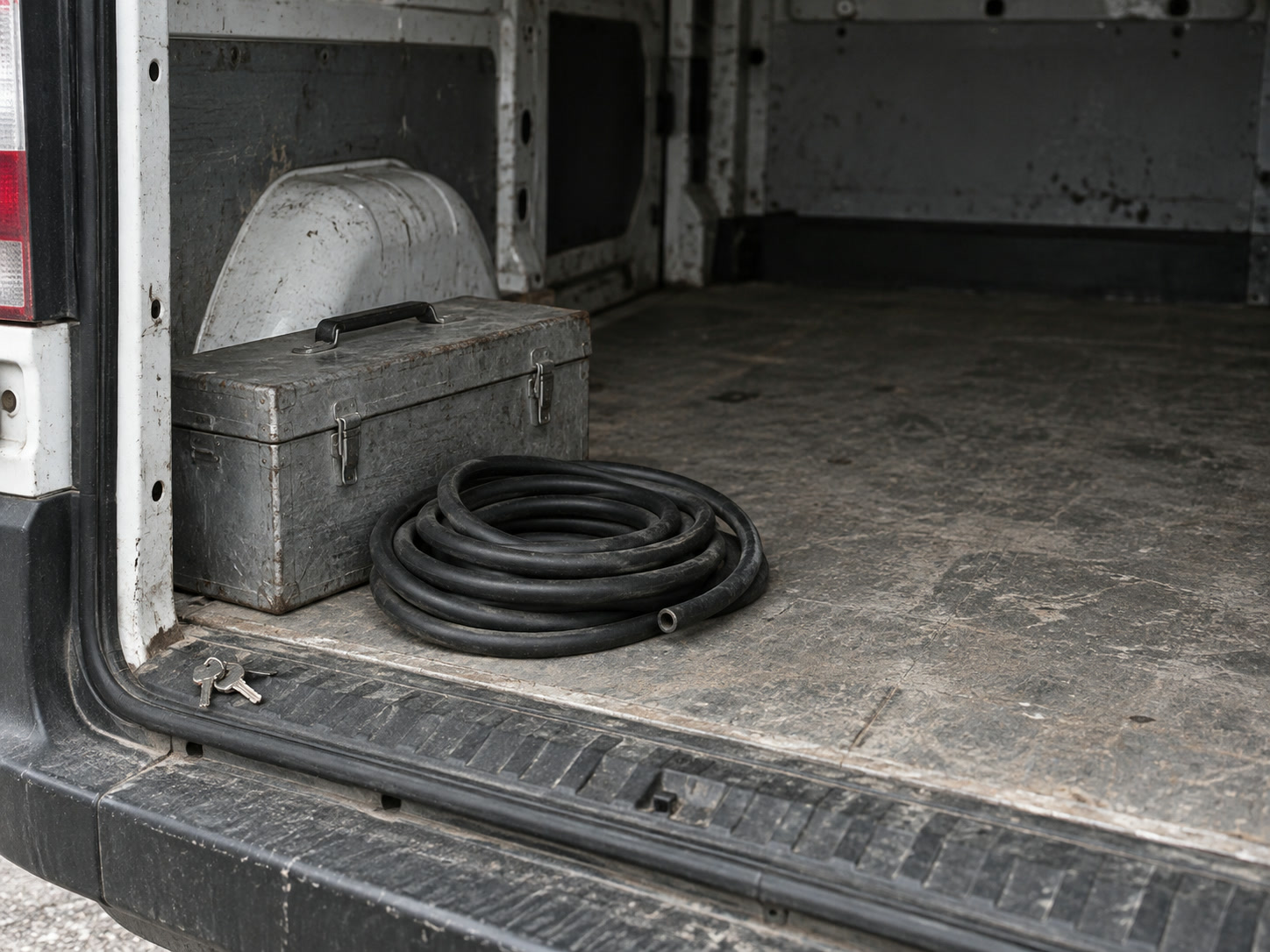
A few fixes that seem tempting are not fixes at all. A virtual office you do not actually work from, a friend's shop address or a borrowed storefront break Google's guidelines, so they are not a route to verification. Your service area should also stay realistic. Google says the overall area normally should not go beyond about two hours' driving time from your base.
How do you check your Google Business Profile verification status?
Before you film again, confirm where things stand. Sign in on your phone with the Google Account that manages the profile, then search your business name plus your city, or search "my business." Google's page on how to verify your business says the profile will show one of a few states: Get verified, the verification method available to you, Review issues, or verified.
Each one tells you something different. Get verified returning after an attempt means Google could not completely verify the business. Review issues means Google has specific problems for you to read. If you see a method other than video, that is the one Google is offering right now.
Google currently lists video recording, live video call, phone or text, email and postcard as possible methods. It chooses them automatically, based on things like your business type, public information, region and hours, and some profiles need more than one. You cannot pick a postcard because video feels harder. What you can do is make sure the details on your profile are correct: the name matches your real sign or branding, the address is real and precise, the category fits what you do, and the service-area setting matches whether customers visit.

Why was your video rejected, and what do you do next?
A rejection is frustrating, but it usually comes with directions. Google says it shares the reasons when a first video fails, and those reasons map to the three kinds of proof. The steps below run in order, from waiting for the review to recording again. The last one covers the rare case where the problem is bigger than a rejected video.
Give the review time
Google's video page says a review can take up to five business days. Its general verification page adds that it can rarely take longer. Filming again while the first video is still under review adds nothing, so wait for the result.
Read Review issues first
If the video is rejected, open your Business Profile on your phone and select Review issues. Read the exact problems Google names. Google's own examples of rejection reasons are that the name was not visible on the storefront, the video did not show the nearby area, or it did not show proof of authorization.
Record a new video that adds the missing proof
Keep everything that worked in the first video and add what was missing. If Google said the nearby area was not shown, start further out and hold on a street sign longer. If the name was not visible, stop and frame the sign clearly. If proof of authorization was missing, add the moment you open the locked door, open the register or show a matching document. Sending the same video again leaves the gap Google already named.
| What went wrong | The fix | Size of the job |
|---|---|---|
| Nearby area not shown | Start with a street sign, building number or landmark | Small: plan a better route |
| Name not visible | Hold on the permanent sign that matches your profile | Small if the sign exists; bigger if names do not match |
| No proof of authorization | Open a locked door or a register or show a matching document | Small if you have the access |
| Too short or has breaks | One new take, 30 seconds or more, no cuts | Small: film again |
| Faces or private data shown | Film objects and places only | Small: film again |
| No permanent sign because customers never visit | Set up as a service-area business | Profile change, then a new video |
The bottom row is the one to think through. If your listed name does not match your real sign or branding, or you set up as a storefront when customers never come to you, a better video will not fix it. Correct the profile first.
Know when the problem is a suspension instead
A rejected video is not a suspension. If your profile has been suspended or disabled, Google has a separate process and an appeal route on its page about suspended or disabled profiles. Using the appeal tool for an ordinary rejected video is the wrong door. For a routine rejection, the next step is Review issues and a better recording.
Why won't your verification video upload?
Sometimes the problem is not the content at all. The recording finishes, and the upload fails or hangs. Google's advice for a failed upload is plain: try uploading again. Before you do, check that the app has permission to use the camera and that your phone has a steady connection.
If you have met every requirement and the problem keeps happening, Google says to try another verification method, but only if one is offered to you, or to contact Business Profile support through the Business Profile Help Center. Plan around the five business days for review and treat anything longer as a reason to follow up.
Google's own community forum keeps a running thread of video verification troubleshooting questions, which can help you see whether others hit the same upload error. Treat forum answers as tips, though, and treat Google's Help pages as the rules.
Do you need to pay someone to get verified?
Often, no. If your business is eligible and your profile matches how you really operate, you can use Google's free flow and film a compliant video yourself in a short session. You also do not need editing software, music, narration, a special script or expensive equipment. Google's requirements ask for none of them. What matters is whether one live recording clearly shows the three kinds of proof and leaves out anything private. Clear footage still helps, since shaky or dark video can make the proof hard to see.
Nobody you hire can choose a better verification method for you, guarantee approval, lend you an address or a virtual office, or appeal an ordinary rejected video as if it were a suspension. The owner, an employee or an authorized manager still has to provide the real access and the real evidence.
Paid help earns its place in narrower cases. It makes sense when you are not sure whether you are a storefront or a service-area business, when the name, category or address on the profile conflicts with how you actually operate, when the same rejection keeps coming back after you fixed what Google named, when ownership of the profile is in dispute, or when the profile is actually suspended. In those cases, someone who knows Google's rules can check the details and point you to the right official route.
Is your verification video ready to record?
Pick an answer to begin.
1. You filmed a great clip yesterday. Can you upload it today?
2. You run a mobile cleaning business from home and customers never visit. What should the video show?
3. Your video was rejected for "no proof of authorization." What is the best next step?
Frequently Asked Questions About google business profile video verification
How long does Google Business Profile video verification take?
Google says a review can take up to five business days, and its general verification page says it can rarely take longer. Wait for the result before recording again.
What are the Google Business Profile video verification requirements?
One live, unedited, complete recording of at least 30 seconds, made and uploaded on your phone. It has to show your location, proof the business exists and proof that you manage it, with no faces or private information.
Why is Google Business Profile video verification not working for me?
If the video was rejected, open Review issues to see the reason and record a new video that adds the missing proof. If the upload itself fails, try again; if it keeps failing after you meet the requirements, use another offered method or contact support.
Can I choose postcard or phone verification instead of video?
No. Google assigns the available methods automatically based on your business and region. You can only use the methods it offers you.
Can I hide my home address and still verify?
Yes, if customers do not visit you there. List yourself as a service-area business, hide the address from the public, and film nearby markers, your tools and proof you run the business.
Where do I check my Google Business Profile verification status?
Sign in on your phone with the account that manages the profile and search your business name and city, or "my business." The profile shows Get verified, the method on offer, Review issues or verified.
Moving Forward
Google Business Profile video verification comes down to one live, continuous recording on your phone that shows where you are, that the business is real and that you run it. Storefronts film a street marker, a permanent sign and a staff-only area. Service-area businesses film nearby markers, their tools and proof of management, with the home address hidden. After a rejection, Review issues tells you what to add.
Once you are verified, you control your own listing. You can correct your details when they change and reply to customers, including responding to negative reviews before they sit unanswered.
If you have filmed twice and still cannot tell what Google wants, or the profile itself does not match how your business really works, we can help. At Web Leveling, our Google Business Profile management work starts by checking the name, category, address and service-area settings against how you actually operate, then planning the evidence you will film yourself. We cannot pick Google's method or promise approval, but we can help you send the right proof the first time you try again. We work with small and medium businesses across the country and overseas. Tell us where your verification got stuck, and we will walk through it with you.
Terms
Verification words in this post
Tap a term to see what it means.
Business Profile. A business's free listing on Google Search and Maps, formerly called Google My Business.
Video verification. A live phone recording Google may ask for to confirm a business's location, existence and management.
Storefront business. A business that serves customers at its own address, with permanent signage.
Service-area business. A business that visits or delivers to customers and does not serve them at its address.
Review issues. The option on a Business Profile that shows why a verification attempt did not succeed.
Suspension. A restriction on a profile for guideline problems, handled through Google's appeal process, not by filming again.